Choose by device
iPhone / iPad: App Store.
Mac / Windows / Android / Linux: downloads from this site.
Choose how to get Shadowrocket for your device, then check system and chip requirements. Import your existing subscription or server details after installation.
Current version v2.2.92 · Mac, Windows, Android and Linux are free; iPhone / iPad: $2.99 once
iPhone / iPad: App Store.
Mac / Windows / Android / Linux: downloads from this site.
Mac versions are available for Apple Silicon and Intel; Windows and Linux use x86_64, and Android uses arm64.
iPhone and iPad are $2.99 once on the App Store; Mac, Windows, Android and Linux are free. Your current device is shown first when detected, or choose another platform.
$2.99 once. Buy and install through the App Store. One purchase works on both iPhone and iPad with the same Apple ID; Mac, Windows, Android and Linux versions are free.
Check the App Store listing for system requirements. Before purchasing, confirm the current storefront region, developer and App ID. Prices appear in each storefront's local currency.
Free. Requires macOS 12 or later. DMG installers are available for Apple Silicon and Intel. Choose the one that matches your Mac; do not use your phone model or browser name to determine compatibility.
Not sure which to choose? Open About This Mac and check Chip or Processor. Move the app to Applications before opening it. See the installation guidance below if a system warning appears the first time you launch it.
Free. A 64-bit x86_64 EXE installer is available. Before downloading, check your system type under Settings → System → About to confirm that your device architecture matches the installer.
Wait for the browser download to finish before running the file. If SmartScreen displays a warning, confirm the download came from this site and follow the installation guidance below. Organization-managed computers may require administrator permission.
Free. An arm64 APK is available for most recent Android phones and tablets. Check your device architecture, then open the installer from your browser's download history once the download is complete.
For the first installation, you may need to enable Allow from this source for your current browser. If a download does not work inside WeChat, follow the page prompt to open it in your system browser, then tap the installer button again.
Free. Packages are available for x86_64. Choose .deb for Debian / Ubuntu, .rpm for Fedora / openSUSE, or AppImage for other distributions. AppImage may require execution permission.
Choose one format according to your distribution's package manager; there is no need to install all three. Replace the filename in terminal commands with the name of the downloaded file, and run the command from that file's directory.
Desktop and Android installers are not code-signed, so the system may block them the first time you open them. First confirm that the file came from this page's /dl/shadowrocket/ download path, then follow the relevant prompt.
| Platform and prompt | Steps | Notes |
|---|---|---|
| Windows SmartScreen “Windows protected your PC” |
Select More info, confirm the app and file source, then select Run anyway and continue with the installer. | If your device policy does not provide a continue option, contact your device administrator. Do not turn off system-wide protection. |
| macOS “Cannot verify developer” |
Move the app to Applications first. After trying to open it, go to System Settings → Privacy & Security, find the relevant entry, and select Open Anyway. | A follow-up confirmation may require your Mac login password. Confirm that the entry is for Shadowrocket, not another downloaded file. |
| macOS App is “damaged” |
After confirming that the app came from this page and is in Applications, run this command in Terminal: xattr -cr /Applications/Shadowrocket.appThen reopen the app. |
This command applies only to the app path shown above. If the download is incomplete or the file will not mount, download it again first; do not run the command on other directories. |
| Android Allow installation of unknown apps |
Follow the system prompt to open the current browser's permissions page and enable Allow from this source. Return to your download history and open the APK again. | This permission applies to the browser or file manager that started the installation. You can turn it off after installation if you prefer. |
| Linux AppImage File does not have execute permission |
Grant execute permission to the downloaded file. For example, rename it to Shadowrocket.AppImage and run: chmod +x ./Shadowrocket.AppImageThen run the file. |
The command example assumes the current directory and filename match. AppImage must also meet your distribution's runtime requirements. |
| Linux Debian / Ubuntu Install a local DEB |
Install the file from your downloads directory using its actual filename. For example, rename it to Shadowrocket.deb and run: sudo apt install ./Shadowrocket.deb |
Keep ./ before the filename to indicate a local package in the current directory. Install RPM packages using your distribution's software installer. |
Allowing an installation and authorizing a connection are separate steps. The first determines whether the installer can run; the second appears when the client establishes a connection. After installation, you still need to enter or import server details. The first time you connect, allow the VPN configuration when prompted by the system. If the client opens but cannot reach a website, check the configuration, default server and network status rather than reinstalling repeatedly.
When updating the desktop or Android version, quit the running client first and keep a record of your configuration. Then download the installer for the correct architecture. The version field on this page reads from the package manifest; if your browser has not loaded it yet, refresh later. This page does not guess your Mac chip from browser detection. When selecting manually, check About This Mac.
This app is not available in the mainland China storefront. Your Apple ID country or region determines which storefront you see. Device location, system language and App Store storefront are separate settings.
If Shadowrocket does not appear in search, first check the account used for Media & Purchases, rather than only the iCloud account shown at the top of Settings. They may be different accounts. Download history and purchase ownership are tied to the storefront account used for the purchase. Opening the App Store product page linked from this page can also help distinguish a search ranking issue from storefront unavailability.
Account balance, active subscriptions, pending items and payment methods may affect a region change. Follow the prompts shown on your account page to confirm whether you can proceed. Do not change multiple account settings in a row just to troubleshoot one failed search. Note the message first, then determine whether it concerns region availability, payment or device compatibility.
Before purchasing, expand the product page's compatibility details and check its listed system requirements. The US App Store price for iPhone / iPad is $2.99 once; other storefronts display local currency. Mac, Windows, Android and Linux versions are free and available from their platform cards on this page; they are not purchased through this storefront.
On iPhone or iPad, verify the product identity before checking its price and compatibility. Screenshots help identify the interface; they do not indicate that a server is configured after installation.
First, check the developer name: it must be Shadow Launch Technology Limited. Next, check the official icon: a rocket with a blue-purple outline on a white background. Finally, check that the product link contains App ID 932747118. A similar name does not mean it is the same app, and other search results cannot replace these three checks.
Shadowrocket
App ID: 932747118
An identically named listing shown as free in the App Store is an imitation, not the iPhone / iPad product described here. Prices differ by platform: iPhone / iPad is $2.99 once; Mac, Windows, Android and Linux versions are free. Do not use App Store pricing to judge installers for other platforms.
For Mac, Windows, Android and Linux, use the buttons on this page. Installer links are under this site's /dl/shadowrocket/ path. Do not rely on a filename or file icon alone to verify its source. If you got a file from another page, return here and select the relevant platform. If a download is interrupted, delete the incomplete file and download it again using the corresponding button.
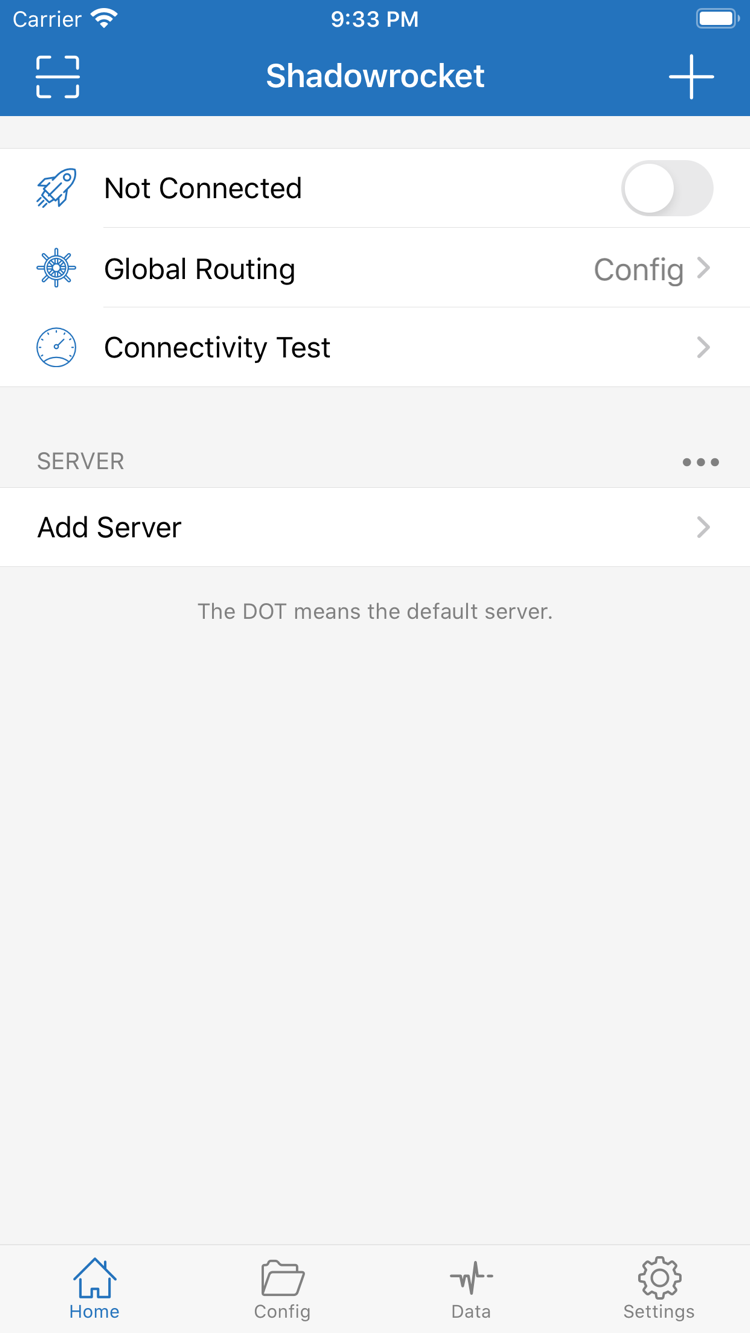
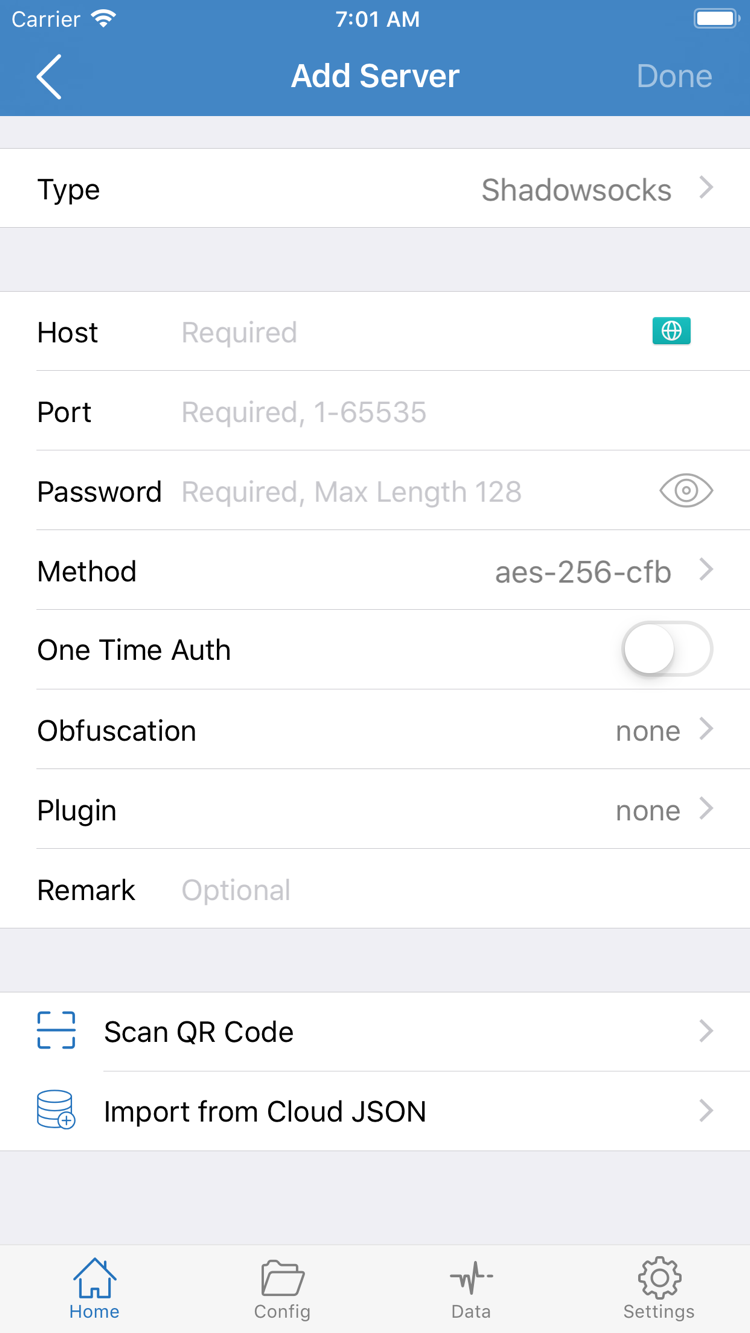
The Home screenshot includes Not Connected, Global Routing, Connectivity Test and the SERVER group. The Add Server screenshot includes fields such as Type, Host, Port, Password and Method. These screenshots come from official App Store materials. The actual interface may vary by settings and version; use the developer, official icon and App ID above to verify the app.
Server entries and fields in the screenshots only illustrate the interface; they are not connection details provided by this site. Use details obtained from your provider when importing. Passwords, subscription links and QR codes should be kept secure; hide them before sharing a screenshot to troubleshoot an issue.
App purchase history and connection settings are handled separately. Downloading the app again does not automatically restore subscriptions or server details from your previous device.
Using the Apple ID from the original purchase, open the App Store and go to Account → Purchased. Find Shadowrocket and download it again. Depending on your system version, the entry may appear as Apps or My Apps; look for your purchased apps list in the account page.
One purchase works on both iPhone and iPad with the same Apple ID; you do not need to buy it separately for these devices. The iPhone / iPad version is $2.99 once. Mac, Windows, Android and Linux versions are free and can be downloaded again directly.
After installing the client on a new device, import your existing subscription or server details again, then check the default server and rule configuration. Get subscriptions from your provider. If the provider has changed an address or parameter, use the current details.
For a new Mac, Windows, Android or Linux device, download the matching installer again. When changing Macs, do not assume the new device uses the same chip as the old one. Check About This Mac on the new device before choosing an installer.
If the app is missing from Purchased, first check whether the Media & Purchases account is the one used for the original purchase. Then check whether the purchase is hidden and whether the current storefront offers the app. A device backup alone does not mean that the purchase record has transferred. If the storefront shows a price again, check purchase ownership and account status before paying again.
Before reinstalling, keep a record of your configuration and make sure you can still access your subscription address. Client settings, provider accounts and App Store purchase records are managed separately. Restoring an app purchase will not restore a provider account or extend the validity of a connection service. You must still follow the system prompts to authorize a connection on a new device.
The iPhone / iPad version costs $2.99 once on the App Store, with no monthly client fee. Mac, Windows, Android and Linux versions are free.
The client purchase covers use of the app and the ability to download it again; it does not include a server or subscription. On every platform, import your own subscription or server details. This site does not provide, sell or recommend nodes or subscriptions. It explains how to install Shadowrocket, import existing details and check rules and connection status.
After obtaining a subscription from your provider, confirm that the link is still valid before importing it. The provider's service period, data allowance and connection limit are separate from the client purchase. An app that opens does not mean the subscription is still valid. Check installation, imported details, server connection and rule matching separately to avoid repeating steps unnecessarily.
App updates for iPhone and iPad are delivered through the App Store. For Mac, Windows, Android and Linux, return to this page to download an updated installer. Keep your configuration before updating, then check that your existing servers and rules still work as expected. If only one website has a connection issue, check the server and rules instead of resetting all settings.
This is the download section of the Shadowrocket official manual. To learn the differences between Config, Proxy and Direct, see the glossary. For import or connection issues, consult troubleshooting and use the specific symptoms to narrow down the cause.
First identify the device, download source and store account, then address the relevant prompt.
/dl/shadowrocket/ download path. The installer is not code-signed, so SmartScreen may show a warning. Once you've confirmed the source, select More info, then Run anyway. Contact your administrator first if your computer is managed by an organization.